

If you store contracts, employee records, or client files in Microsoft Word, adding a password is one of the fastest ways to keep that data out of the wrong hands, and it takes less than two minutes on either Windows or Mac.
This guide walks Burbank, CA professionals through every step of the process, covers the differences between Windows and macOS workflows, and explains the optional editing restrictions that give you even finer control over who can change your documents.
If you are working from a different location and need the same guidance tailored to your area, our walkthrough on How To Password Protect a Word Document covers the exact same steps with a focus on the greater Nashville region.
Key takeaways from this article:
- Word encrypts with AES-128 by default on Windows and macOS, which is strong enough for most business documents.
- The protection workflow differs by platform: Windows uses File > Info > Protect Document, while macOS uses the Review tab.
- Password protection does not activate until the document is saved and reopened, so skipping the save step leaves the file unprotected.
- You can layer a separate Restrict Editing password on top of the open password to control who can make changes without blocking read access.
Quick Answer: How To Password Protect a Word Document
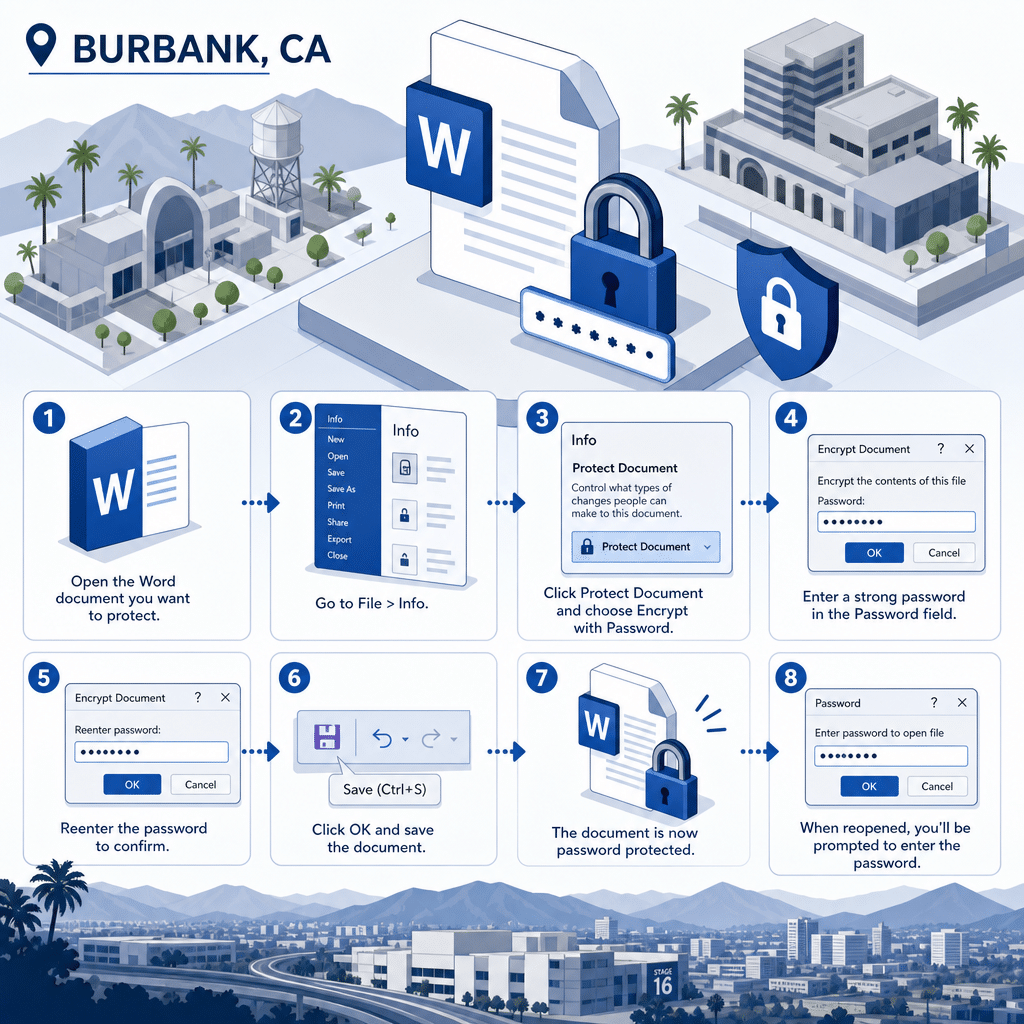
On Windows, open your document, click File, select Info, click Protect Document, choose Encrypt with Password, type a strong password, confirm it, and save the file. On macOS, open the document, click the Review tab, select Protect, click Protect Document, enter and confirm your password, and save.
Password protection only becomes active after the file is saved and closed, so the final save step is mandatory, not optional. If you skip the save, anyone who opens the file before you close it will still have full access.
Store the password somewhere secure, such as a dedicated password manager like Bitwarden or 1Password, because Microsoft Word has no built-in password recovery mechanism. A forgotten password means a permanently locked file.
Password Protect a Word Document: Step-by-Step Checklist
- ✓Confirm Microsoft Word desktop app is installed (Windows or Mac): Required before starting, browser-based Word does not support encryption
- ✓Windows: File > Info > Protect Document > Encrypt with Password: Primary encryption path on Word for Windows (Word 2016 and newer)
- ✓Mac: Review tab > Protect > Protect Document: Primary encryption path on Word for macOS (Word 2016 and newer)
- ✓Enter a strong password (letters, numbers, symbols) and confirm it twice: Word requires both entries to match exactly before accepting the password
- ✓Save the document immediately after setting the password: Protection is not active until the file is saved and reopened
- ✓Optionally apply Restrict Editing for a separate modify password: Controls what authorized readers can change without blocking access entirely
- ✓Store the password in a password manager (Bitwarden, 1Password, LastPass): Word has no built-in recovery tool, a lost password means a permanently locked file
Workflow verified against Microsoft Word 2016, 2019, 2021, and Microsoft 365 on Windows 10/11 and macOS Ventura/Sonoma.
Before You Start: Confirm Your Platform and Word Version
The first step is to verify that Microsoft Word is actually installed on your machine, not just a viewer or the web version of Word, because browser-based Word does not support password encryption. Check your installed apps on Windows via Settings > Apps, or on Mac by looking in your Applications folder for Microsoft Word.
Word 2016, 2019, 2021, and Microsoft 365 all support AES-128 encryption on both platforms, which is the current default cipher. Older versions such as Word 2010 used RC4, which is weaker, so upgrading to a modern release is worthwhile if you are protecting sensitive documents for Burbank business use.
Also note whether you are on Windows 10 or 11 versus macOS Ventura, Sonoma, or later, because the menu layout changed slightly between major releases. The core path described in this guide applies to Word 2016 and newer on both operating systems.
Step-by-Step: Password Protect a Word Document on Windows
Open the Word document you want to protect, then click the File tab in the upper-left corner of the ribbon to enter the Backstage view. From the left-hand menu, click Info, and look for the Protect Document button, which appears as a lock icon in the center panel.
Click Protect Document and then select Encrypt with Password from the dropdown list. A small dialog box will appear asking you to type a password, and then a second dialog will ask you to confirm it by typing the same password again.
Word requires both entries to match exactly, so take your time and avoid common substitutions that you might forget later. After confirming the password, click OK, then press Ctrl+S to save the file, and close it.
When you or anyone else reopens the file, Word will immediately prompt for the password before displaying any content.

Step-by-Step: Password Protect a Word Document on macOS
Open your document in Microsoft Word for Mac, then click the Review tab in the top ribbon, which is the same tab used for track changes and comments. Look for the Protect group on the right side of the ribbon, click Protect, and then select Protect Document from the submenu.
A dialog panel will slide open on the right side of the screen, offering options for a password to open and a password to modify. Enter your chosen password in the Password (optional) field under the heading that matches your goal, confirm it in the Reenter password field directly below, and click OK.
Save the file with Command+S after dismissing the dialog, and then close and reopen it to verify the password prompt appears. If the prompt does not appear, double-check that you clicked OK in the protection panel before saving, because clicking away without confirming discards the setting.
Choosing a Strong Password and Storing It Safely
Word accepts passwords up to 255 characters long, so a passphrase of three or four unrelated words plus a number and a symbol, such as Burbank-Desk9!Maple, is both memorable and difficult to brute-force. Avoid using your company name, address, or any information visible on the document itself, because those are the first guesses an attacker would try.
If you manage documents for multiple clients or employees in a Burbank office environment, a business password manager such as LastPass Teams, 1Password Business, or Bitwarden Secrets Manager lets you store each document password alongside the file name and access history. That audit trail is useful if a compliance question arises later.
Never embed the password in the file name or in a sticky note attached to the monitor near the machine where the file is stored. Even strong encryption is useless if the key is visible in plain sight next to the locked cabinet.
Using Restrict Editing for Finer Control
Password encryption controls who can open a file, but it does not control what an authorized reader can do with it after they get in. Word’s Restrict Editing feature lets you set a separate modify password or limit the types of edits permitted, such as allowing only comments or form field entries, while the document itself remains readable without a password.
On Windows, access Restrict Editing via File > Info > Protect Document > Restrict Editing, which opens a task pane on the right side of the screen. On Mac, the same option appears in the Review > Protect > Protect Document panel, where you will see separate fields for an open password and a modify password.
A practical scenario for a Burbank law office: send a contract to a client using an open password so they can read the document, but apply a modify password so they cannot alter the terms before signing. This approach keeps the document readable for the intended recipient while preserving the integrity of the language your team drafted.
For Burbank financial firms that need more than document-level security, Tvg Consulting Group delivers comprehensive IT services for hedge funds and asset management companies that protect sensitive client data across entire technology environments.
How To Remove or Change a Password in Word
Removing a password requires knowing the existing password first, because Word will not let you access the encryption settings without authenticating. Open the file, enter the current password when prompted, then follow the same path you used to set it originally and delete the contents of the password field before clicking OK.
To change a password rather than remove it entirely, follow the same steps but type the new password in place of the old one. Save the file immediately after making the change, because until the file is saved, the old password is still technically active.
If you need to update passwords across a batch of protected documents, the process must be repeated file by file in the standard Word desktop app. There is no built-in bulk password change tool in Word, so Burbank teams managing large document libraries may want to investigate third-party document management platforms that handle encryption at the repository level.
Frequently Asked Questions
Does password protecting a Word document actually encrypt the file?
Yes. When you use the Encrypt with Password option in Word 2016 or newer, the file is encrypted with AES-128 by default, which means the contents are mathematically scrambled and unreadable without the correct key.
Simply changing a file extension or adding a read-only attribute does not provide the same level of protection.
Can I password protect a Word document on the free web version of Word?
No. The web version of Microsoft Word (Word for the Web accessed through a browser) does not include the Encrypt with Password feature as of 2024.
You need a desktop installation of Word, either through Microsoft 365 or a standalone Office license, to apply password encryption.
What happens if I forget the password on a protected Word document?
Microsoft does not provide a password recovery tool for encrypted Word documents, and there is no backdoor to the AES encryption. If you lose the password, the document is effectively inaccessible, which is why storing it in a password manager at the time of creation is strongly recommended.
Is the macOS Word password protection process compatible with Windows users who receive the file?
Yes. The .docx format stores encryption in a platform-neutral way, so a file protected on a Mac will prompt for a password on any Windows machine running a compatible version of Word.
The recipient does not need a Mac or any special software beyond Word itself.
Can I protect only certain sections of a Word document instead of the whole file?
The Restrict Editing feature lets you designate specific sections as editable while locking the rest of the document, which is useful for templates and forms. This is different from full file encryption, so keep in mind that the document can still be opened without a password unless you also apply an open password.
Does saving a Word document to OneDrive replace the need for a password?
OneDrive access controls protect the file at the cloud storage level, meaning unauthorized users cannot download it if permissions are set correctly, but they do not encrypt the file itself. Applying a Word password adds a second layer so that even if someone downloads the file, they still cannot open it without the password.

About the author
Garett Chipman - CEO, TVG Consulting
Garett Chipman is an IT executive and entrepreneur with more than 20 years of experience designing business technology solutions. He founded TVG Consulting in 2005 after holding CTO and management roles at companies including GRB Entertainment and AMG, and as CEO he oversees overall client operations, strategic technology decisions, and custom AI and automation design.