
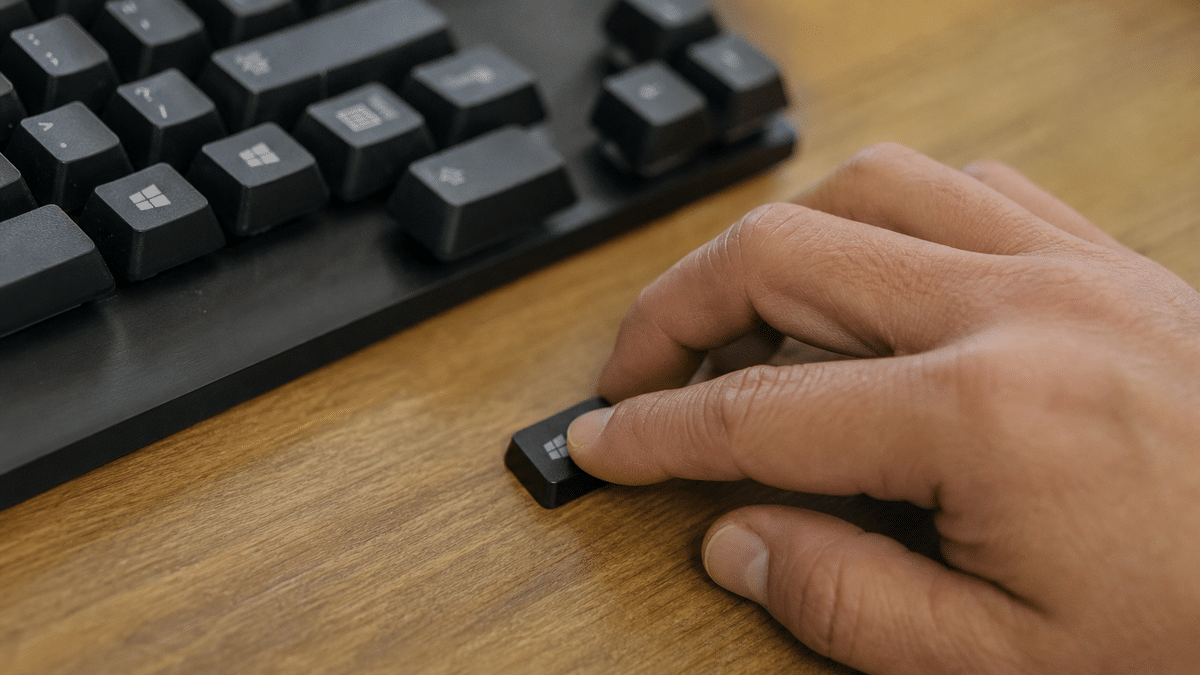
The keyboard Windows button sits between your Ctrl and Alt keys, and pressing it by itself opens or closes the Start menu according to Microsoft’s official documentation Microsoft Support. For Burbank office workers who navigate between spreadsheets, client calls, and shared network folders all day, this small key can save minutes every hour when you know the full shortcut set.
TVG Consulting has supported businesses across Burbank, Glendale, Pasadena, and the greater Los Angeles area for more than 20 years from our office at 217 West Alameda, Ste 102, Burbank, CA. This guide explains the most practical Windows key shortcuts for daily office work, with specific scenarios that apply to shared workspaces, dual-monitor setups, and the security habits that protect company data.
Key takeaways from this article:
- Pressing the Windows logo key alone opens or closes the Start menu, which serves as the central launch point for apps, search, and system tools.
- Win plus E opens File Explorer immediately, letting staff jump into local or network folders without clicking through taskbar icons.
- Win plus L locks the PC in one keystroke, a recommended practice in shared or open-plan offices to prevent unauthorized access.
- Win plus arrow keys snap windows or move them between displays, which helps staff working across multiple monitors in Burbank offices.
The Core Function: What the Keyboard Windows Button Does First
The keyboard Windows button performs one essential task before anything else. Pressing it by itself opens or closes the Start menu, acting as a central launch point for apps, search, and system tools Microsoft Support.
This single press replaces the need to move your mouse to the taskbar corner and click. For Burbank office workers who switch between client presentations, email, and project management tools dozens of times per day, that motion adds up to measurable time saved.
The Start menu also provides immediate access to the search function, power options, and pinned applications. Workers in shared offices near the Burbank Media District or along San Fernando Boulevard can launch any program without hunting through desktop icons or folder hierarchies.
Essential Windows Key Shortcuts for Burbank Offices
Source: Microsoft Support, Keyboard Shortcuts in Windows
Win Plus E: Fast Access to File Explorer for Shared Office Files
Burbank offices rely on network drives and shared folders for project collaboration, client files, and compliance documentation. Win plus E opens File Explorer instantly so office staff can jump directly into local or network folders instead of clicking through taskbar icons Microsoft Support.
This shortcut matters most when you need to pull a document during a phone call or grab a spreadsheet while screen-sharing with a colleague. The two-second delay of mouse navigation becomes a problem when a client is waiting on the other end of the line.
TVG Consulting configures Microsoft 365 and Google Workspace environments for businesses throughout Burbank and Los Angeles, including cloud workspace setups with security policies and collaboration tools. Properly mapped network drives opened through Win plus E keep teams connected to the same file versions whether they work from the Alameda office or remotely.
For construction firms and real estate offices in the Burbank area that TVG supports, quick File Explorer access means pulling permits, blueprints, or property disclosures without fumbling through nested folders under deadline pressure.
Win Plus L: One-Keystroke Security in Shared Workspaces
Stepping away from your desk for a coffee refill or a conference room meeting creates a window of vulnerability in open-plan offices. Win plus L locks the PC in one step, which is a recommended practice in shared or open-plan offices to prevent unauthorized access while away from the workstation Microsoft Support.
This habit takes no extra time once it becomes automatic. The alternative, navigating through the Start menu to find the lock option, often gets skipped when someone is in a hurry or distracted by a colleague at the door.
TVG Consulting implements zero trust security for businesses in Burbank and across our service areas, which verifies every user, device, and connection without assuming trust based on network location. Locking your workstation with Win plus L is the physical-layer complement to that digital security posture.
For offices handling sensitive client data, financial records, or healthcare information in the Burbank area, this simple keystroke supports compliance with data protection requirements. It also prevents the casual shoulder-surfing or accidental screen viewing that happens in collaborative spaces.

Win Plus D: Clearing Screen Clutter During Multitasking
Burbank office workers often juggle multiple applications simultaneously: a browser with client research, a spreadsheet with budget figures, a PDF with contract terms, and an email draft waiting for send. Win plus D toggles between showing the desktop and restoring all open windows, giving workers a quick way to clear clutter or grab a file from the desktop Microsoft Support.
This shortcut differs from minimizing windows individually because it acts as a toggle. Press it once to see your desktop, press it again to return exactly to your previous window arrangement without losing your place in any document.
The use case comes up constantly in presentation settings. A Burbank creative agency or production office might need to quickly show a client a file saved to the desktop, then return to the full workspace without disrupting the flow of a meeting.
For staff augmentation scenarios where TVG Consulting places IT support personnel at client sites, Win plus D helps those workers navigate unfamiliar desktops efficiently. They can locate troubleshooting tools or documentation files without closing the tickets or remote sessions already in progress.
Win Plus S and Win Plus R: Speeding Up Navigation and Search
Finding the right application or settings menu through mouse navigation consumes attention that could stay on the actual task. Win key shortcuts like Win plus S for Search and Win plus R for Run allow workers to launch apps, settings, and documents faster than navigating menus with the mouse Microsoft Support.
Win plus S opens the Windows search interface where you can type an application name, file name, or settings term and get immediate results. Win plus R opens the Run dialog for direct command entry, which power users and IT staff use to launch specific system tools or network paths.
These shortcuts reduce the cognitive load of context-switching. A Burbank office manager who needs to check printer settings mid-task can hit Win plus S, type “printers,” and be in the right control panel in under three seconds.
TVG Consulting’s help desk team, available with a 30-minute or less call-back guarantee at (818) 579-7370, often walks clients through these shortcuts during remote support sessions. Teaching staff to self-serve common navigation tasks reduces ticket volume and keeps Burbank offices productive.
Win Plus Arrow Keys: Window Management on Dual Monitors
Modern Burbank offices increasingly use dual-monitor setups for productivity, with staff spreading spreadsheets across one screen and video calls or reference documents across another. Shortcuts like Win plus Left or Right Arrow and Win plus Shift plus Left or Right Arrow snap windows or move them between displays, which is especially helpful for staff working across multiple monitors Microsoft Support.
Win plus Left or Right Arrow snaps the active window to half of the current screen. Win plus Shift plus Left or Right Arrow moves the window to the adjacent monitor entirely.
This eliminates the imprecise drag-and-drop operation that often overshoots or requires multiple attempts.
For video production offices near the Burbank studios, financial services firms along Olive Avenue, or any business with complex workflows, these shortcuts maintain clean screen organization. Staff can compare documents side by side without manually resizing windows or losing the arrangement when they need to maximize for detail work.
TVG Consulting provides endpoint management services that deploy, manage, and secure employee devices whether in the office, at home, or on the road. Part of that deployment includes configuring display settings and training staff on the shortcuts that make multi-monitor setups actually productive rather than frustrating.
Building Shortcut Habits That Stick in Burbank Offices
Knowing these shortcuts exists and using them automatically are two different states. The transition happens through repetition and contextual reminders, not through one-time training sessions that staff forget by the following week.
TVG Consulting recommends posting a simple reference card near workstations for the first 30 days after any Windows deployment or upgrade. The five shortcuts covered in this guide, Win, Win plus E, Win plus L, Win plus D, and Win plus arrow keys, form a complete daily toolkit that covers navigation, security, and organization.
For businesses with managed IT services through TVG, our team includes shortcut and workflow optimization as part of onboarding for new staff. This reduces the support burden over time and helps Burbank offices get full value from their Microsoft software investments.
Offices that pair these habits with proper cybersecurity training, including the lock-screen discipline that Win plus L enables, create a more resilient operational environment. The few seconds saved per shortcut multiply across hundreds of workdays and dozens of employees.
Frequently Asked Questions
What does the keyboard Windows button do by itself?
Pressing the Windows logo key alone opens or closes the Start menu, which serves as the central launch point for apps, search, and system tools Microsoft Support. This is the most basic function of the key, and it replaces the need to click the Start button with your mouse.
How do I quickly lock my computer when I step away from my desk?
Press Win plus L to lock your PC in one keystroke, which is a recommended practice in shared or open-plan offices to prevent unauthorized access while away from the workstation Microsoft Support. This shortcut should become an automatic habit for anyone working in a Burbank office with sensitive client or company data visible on screen.
What is the fastest way to open File Explorer without using the mouse?
Press Win plus E to open File Explorer instantly so you can jump directly into local or network folders instead of clicking through taskbar icons Microsoft Support. This is especially useful when you need to pull a document during a phone call or access shared office files quickly.
How can I move windows between two monitors without dragging them?
Use Win plus Shift plus Left or Right Arrow to move the active window to the adjacent monitor, or Win plus Left or Right Arrow to snap it to half of the current screen Microsoft Support. These shortcuts help staff working across multiple monitors in Burbank offices manage screen real estate precisely without imprecise mouse dragging.
What shortcut clears all windows to show my desktop?
Press Win plus D to toggle between showing the desktop and restoring all open windows, giving you a quick way to clear clutter or grab a file from the desktop Microsoft Support. Press it again to return exactly to your previous window arrangement without losing your place in any document.
Can TVG Consulting help train my Burbank office staff on Windows shortcuts?
TVG Consulting provides managed IT services for businesses in Burbank and the greater Los Angeles area, including staff training on productivity workflows and Windows optimization. Contact us at (818) 579-7370 for support with endpoint management, Microsoft 365 configuration, or help desk services backed by our 30-minute or less call-back guarantee.
Sources
- Keyboard shortcuts in Windows
- Windows keyboard tips and tricks
- Windows Shortcuts & Hotkeys for Organization
- Boost Productivity with These Windows Keyboard Shortcuts
- Windows button | Shortcuts for the Windows logo key
- List of all Windows 10 keyboard shortcuts: The ultimate guide
- Predefined key combinations
- Windows keyboard shortcuts for accessibility
- Windows key
- www.bu.edu
- learn.microsoft.com
- www.cnet.com